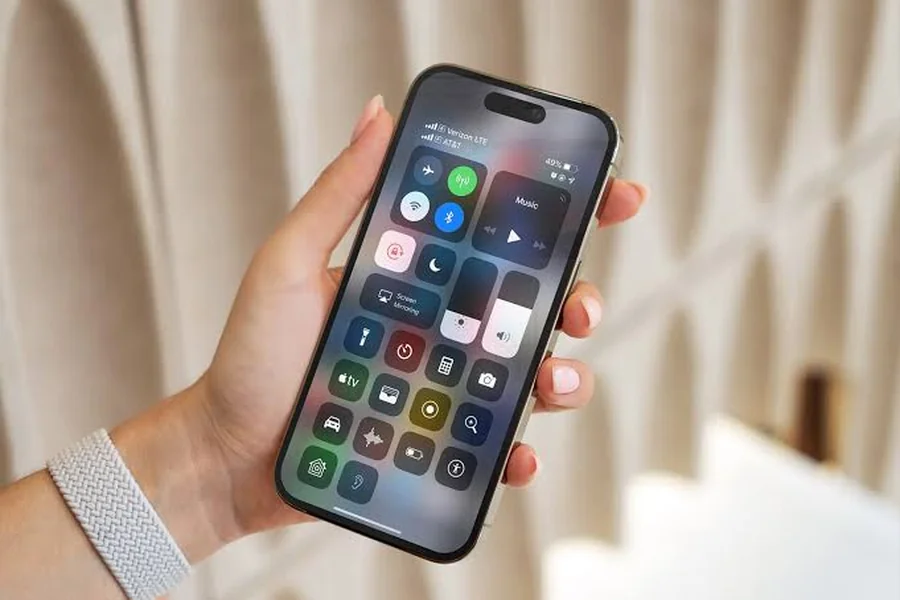
Your iPhone 14 has no SIM tray, so unlocking works differently than on older models. Apple made every U.S. iPhone 14 model eSIM-only in 2022, which means the whole process happens in software. The good news is that the phone can store more than eight eSIMs and run two active lines at once. This guide shows you how to check your lock status and unlock the eSIM the right way. No jailbreaks, no shady apps, just the method that actually works.
What “unlocking” really means on an eSIM iPhone 14
An eSIM is a digital SIM built directly into your iPhone. There is no plastic card to swap. When people ask how to unlock an iPhone 14 eSIM, they usually mean one of two things.
- Carrier lock: your phone is tied to one network and refuses other carriers.
- eSIM activation: your line is ready, but you have not set it up yet.
These are separate problems. A carrier lock is set by the network that sold you the phone. Only that carrier can remove it. If your iPhone is already unlocked, you simply need to add and activate an eSIM. Sorting out which situation you are in saves you hours of guessing.
Step 1: Check whether your iPhone 14 eSIM is locked
Do this first. It takes ten seconds and tells you exactly what to do next.
- Open the Settings app.
- Tap General, then About.
- Scroll down to Carrier Lock.
If you see No SIM restrictions, your iPhone is already unlocked. You can move straight to setting up an eSIM. If you see a carrier name or a lock message, the device is still tied to a network. Do not panic. This is normal for phones bought on installment plans.
Step 2: Confirm you meet your carrier’s unlock rules
Carriers do not unlock phones on request alone. You have to meet their conditions first. Rules vary, but most U.S. networks want the same basics.
- The device is fully paid off, or the installment plan is complete.
- The account is in good standing with no unpaid balance.
- The phone has been active on the network for a set period, often 60 days.
- The device is not reported lost or stolen.
Check these before you call. Requesting an unlock while you still owe money almost always fails. Clearing the balance first turns a frustrating call into a quick approval.
Step 3: Request the unlock from your carrier
This is the only legitimate way to remove a carrier lock. Contact your network and ask them to verify the unlock status of your iPhone 14. You can usually do this three ways.
- Through the carrier’s app or online account dashboard.
- By calling customer support.
- By visiting a store in person.
Have your IMEI number ready. Find it under Settings, General, About. The carrier processes the request on their side. Some unlocks are instant, while others take a few business days. You do not need to install anything for this to work.
Step 4: Restart and confirm the unlock
Once the carrier approves the request, the change is not always visible right away. A quick reset forces the phone to update its status.
- Restart your iPhone 14.
- Return to Settings, General, About.
- Check that Carrier Lock now reads No SIM restrictions.
If it still shows a lock after a day, contact the carrier again. Sometimes the request needs a second push. Keep any confirmation email or reference number they give you.
Step 5: Add and activate your eSIM
An unlocked iPhone 14 can accept eSIMs from almost any provider. Activation is fast and often uses a QR code.
- Open Settings and tap Cellular or Mobile Service.
- Tap Add eSIM.
- Scan the QR code from your provider, or use their app.
- Label the line, then choose it for calls and data.
You can keep your home line active and add a second eSIM for travel. That flexibility is the biggest reason the eSIM system beats old plastic cards.
Why unlocking matters most for travelers
A locked iPhone 14 forces you into expensive roaming abroad. An unlocked one lets you buy a local or regional data plan the moment you land. Once your iPhone 14 is unlocked, you can add a travel data plan from a provider like Holafly before you even leave home. That means you skip airport SIM kiosks and stay connected as soon as your flight touches down. For frequent flyers, that convenience alone justifies the unlock.
Frequently asked questions
Can I unlock my iPhone 14 eSIM for free?
Yes. Carriers do not charge to remove a legitimate lock once you meet their conditions. Any website asking for payment to “unlock” your eSIM is a scam. The only cost is paying off your device balance if one remains.
How long does the eSIM unlock take?
It depends on your carrier. Some approvals are instant, while others take up to a few business days. A phone restart after approval usually confirms the change.
Do I need a computer to unlock the eSIM?
No. The entire process happens through your carrier and your iPhone’s settings. You do not need iTunes, a computer, or any third-party software.
Will unlocking erase my data?
No. Removing a carrier lock does not wipe your photos, apps, or messages. It simply lets the phone accept other networks. Still, a recent backup is always smart.
Can a locked iPhone 14 still use an eSIM?
Only with its original carrier. A carrier lock blocks other networks entirely, so you cannot add a rival provider’s eSIM until the phone is unlocked.
The bottom line
Unlocking an iPhone 14 eSIM is simpler than it sounds. Check your lock status, clear your balance, request the unlock, then activate your new line. The whole process is free and takes minutes of active effort. If you enjoy hands-on tech walkthroughs, our guide to planning a multi-zone mini-split system follows the same clear, step-by-step approach. Get the unlock done once, and your phone is ready for any network, anywhere.